4.4 Downloading a Plugin
Tangible Cloud gives you two places to grab a plugin zip: the product detail page for a specific plugin, or the Downloads page that lists every plugin you have access to. Both produce the same zip file.
From the Downloads page (fastest)
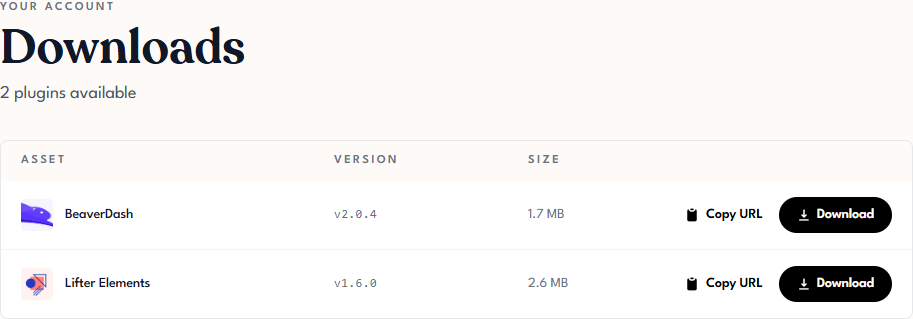
The Downloads page is the single list of every plugin your organization can download.
- Click Downloads in the left navigation.
- Find the plugin in the list. Each row shows the plugin's logo, name, version, and size.
- Click Download to save the zip to your computer, or Copy URL to put the download URL on your clipboard.
From a product's detail page
If you're already on a product's detail page — for example, because you were reviewing its changelog or managing its licenses — you don't need to navigate away to download:
- On the product's detail page, scroll to the Downloads tab (it's usually selected by default).
- Click Download or Copy URL on the zip listed there.
This gives you the same zip as the centralized Downloads page.
Version included
Both pages give you the latest version of the plugin. To install a specific older version, you'll need to request it through support — Tangible Cloud doesn't currently expose older versions for download through the customer UI.
Installing the zip
Downloading doesn't install the plugin — you need to upload and activate it inside WordPress. For the full installation flow, see Activating a Plugin on Your Site in Getting Started.