5.2 Viewing Your Websites
To open the Websites list, click Websites in the left navigation.
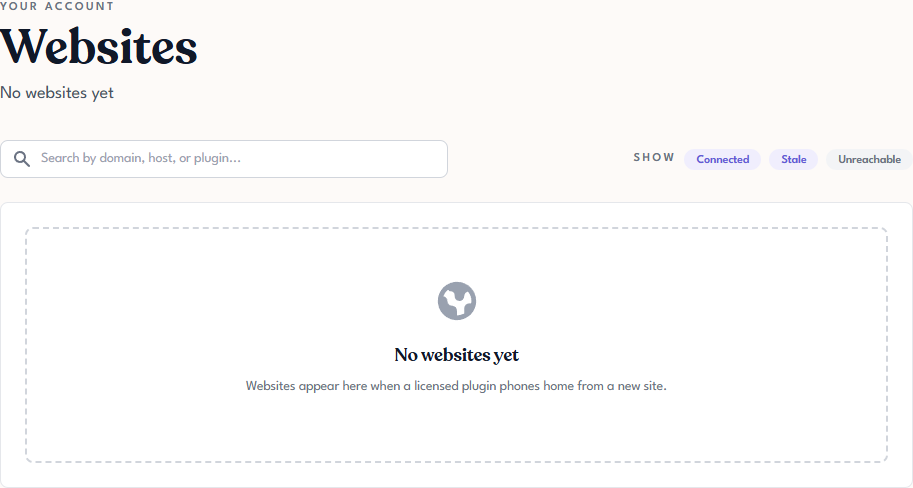
If no sites have activated any of your licenses yet, the page shows a No websites yet placeholder and the summary above the list reads No websites yet. Once activations start happening, sites begin appearing here without any action from you. See Understanding Connected Websites for how sites get onto the list.
[MEDIA: screenshot | 5-2-websites-populated.png | The Websites page with a populated list — at least three site entries with a mix of connection statuses if possible (one Connected, one Stale, one Unreachable) so the reader can see what each status looks like in context. Show the summary count above the list, the search box, the filter pills, and each row's columns (hostname, plugin, status, last-seen or equivalent). Use test or example sites — avoid any real customer site URLs. Desktop view, tight crop to the Websites content card.] [ALT: Tangible Cloud Websites page with a populated list showing sites with different connection statuses] [CAPTION: none]
Opening a website's detail page
Click any site in the list to open its detail page. From the detail view you can:
- See the installed products — every Tangible plugin the site has reported running, along with version and activation status.
- Open the site in a new tab — quick link to the site's actual URL.
- Reassign the site to a different license — useful if you want to move the site's activation from one license to another (for example, moving a site from a single-product license onto a bundle license you now own). Pick the destination license and confirm — the old license's activation count goes down, the new one's goes up.
- Remove the site — removes the website record and releases the linked activations on whatever license(s) it was using. You'll be asked to confirm, because the remove is not reversible from this page; the site can still re-add itself by checking in from WordPress again if the plugin is still installed and licensed.
[MEDIA: screenshot | 5-2-website-detail.png | Website detail page for a connected WordPress site. Show the site's domain as the page heading, the Back to Websites link, the Installed products table (at least one row with plugin name, version, and activation status), the Website license selector (dropdown showing the currently-assigned license with other licenses as options), and the Remove site action. Desktop view, tight crop to the content card.] [ALT: Tangible Cloud website detail page showing installed products, a license selector, and a Remove site action] [CAPTION: none]
Searching
Use the search box above the list to filter by:
- Domain — any part of the site's domain (for example,
example.com). - Host — a specific hostname, useful when you have multiple hosts under one domain (for example,
shop.example.com). - Plugin — the Tangible plugin activated on the site (for example,
Lifter Elements).
Search applies as you type — you don't need to press Enter.
Filtering by connection status
To the right of the search box, three filter pills control which sites appear in the list:
- Connected — sites with a recent successful check-in.
- Stale — sites that haven't checked in recently.
- Unreachable — sites that appear to be offline or blocking Tangible Cloud's attempts to contact them.
You can enable any combination of pills. See Connection Status for what each status means in detail and what usually causes a site to fall out of Connected.
If a site you expect to see is missing from the list, it's probably not a search or filter issue — it's that the plugin never completed an activation. Check Licensing: if the license the site should be using shows 0 activations, the activation never reached Tangible Cloud. Return to Activating a Plugin on Your Site for troubleshooting.