6.3 Canceling a Subscription
Canceling a subscription stops its next renewal. The license stays active and keeps working on your sites until the current billing period ends on the scheduled renewal date. Nothing is shut off immediately.
There are two places you can cancel from: the Tangible Cloud Billing page directly, or the Stripe customer portal linked from it. Both produce the same result; pick whichever's more convenient.
Cancel from Tangible Cloud
- Click Billing in the left navigation.
- Find the subscription you want to cancel.
- Click Cancel on that row.
- Confirm the cancellation if prompted.
Cancel from the Stripe customer portal
-
On the Billing page, click Manage Billing in the top-right corner to open the Stripe customer portal. See Managing Billing in Stripe.
-
In the portal's Current subscriptions section, find the subscription and click Cancel subscription on its row.
-
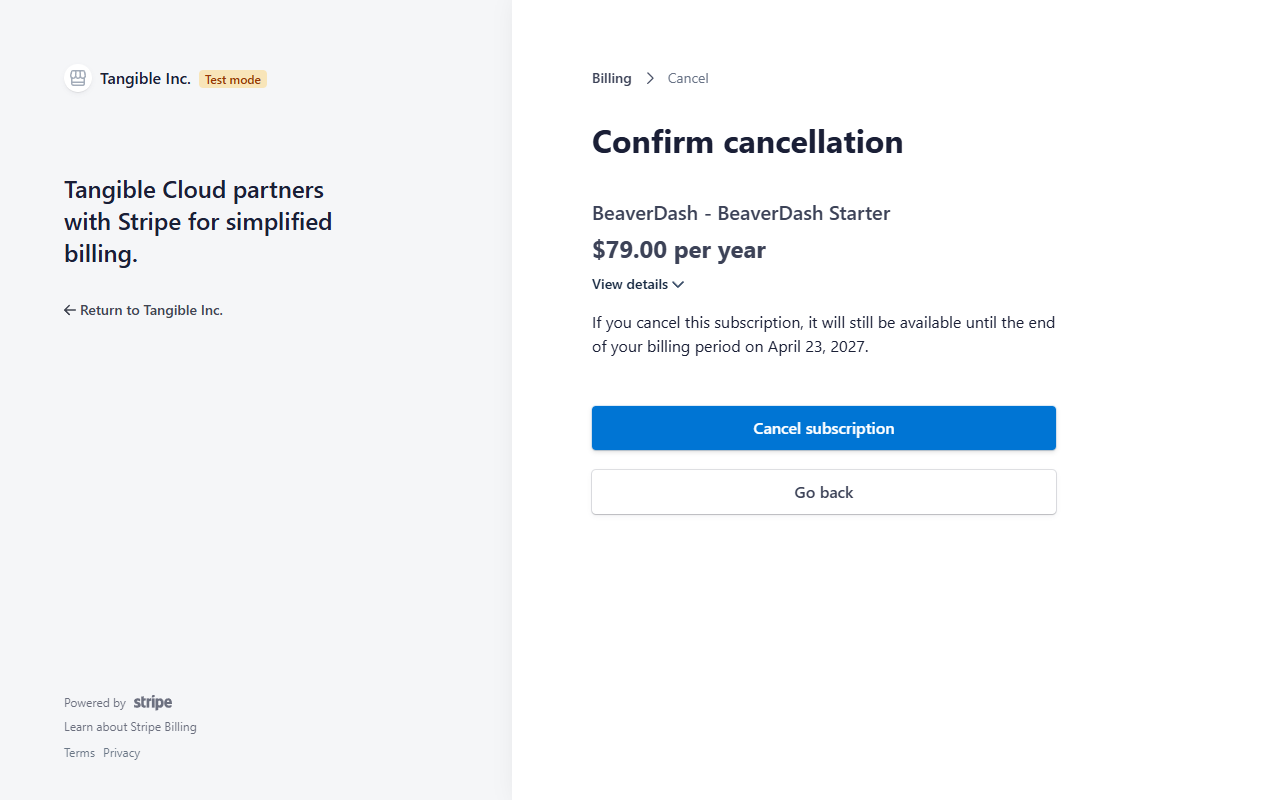
Stripe opens a Confirm cancellation page showing the subscription, its price, and the date your service will end:
-
Click Cancel subscription to confirm, or Go back to abort.
-
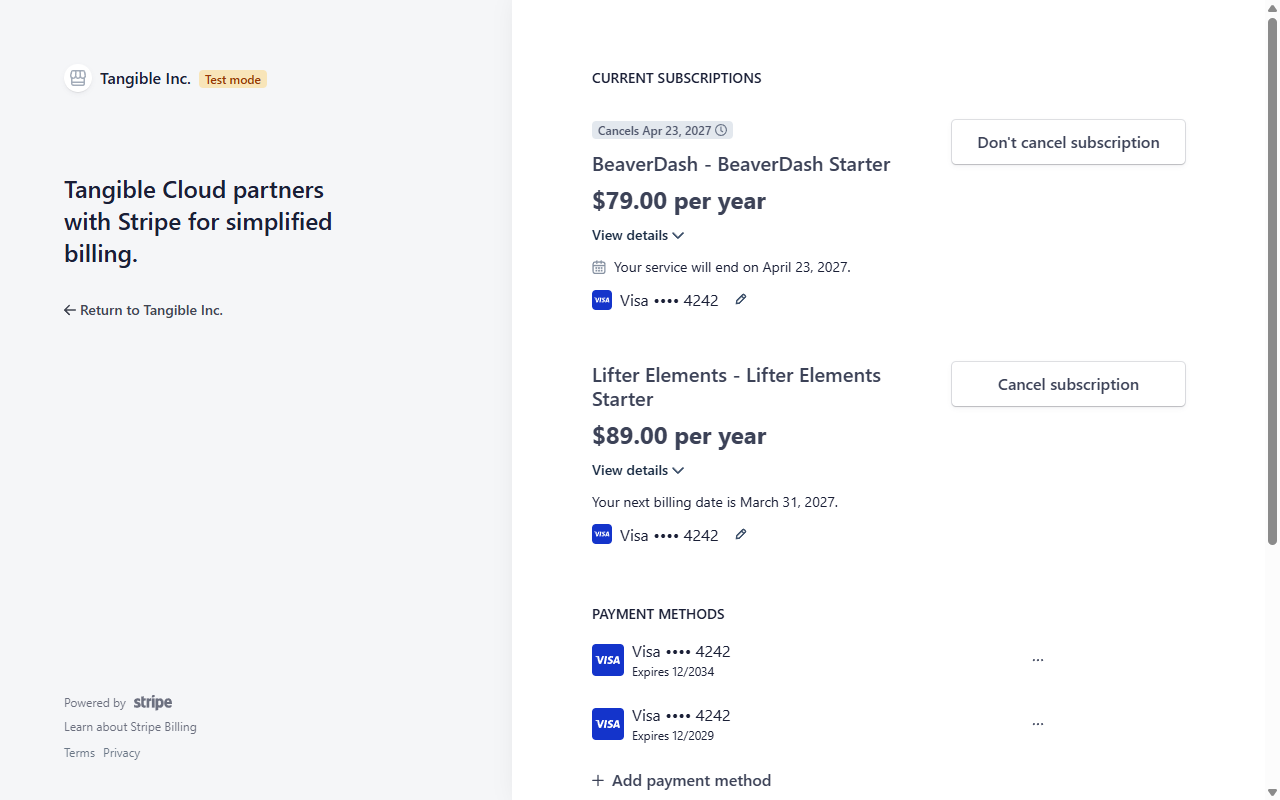
The portal returns you to the subscriptions list. The canceled subscription now carries a Cancels [date] badge and its action button has changed to Don't cancel subscription (if you want to reverse it):
What happens after cancellation
Between the cancellation date and the period-end date:
- The license remains
Activein Tangible Cloud. - Sites that were already activated against the license continue to work normally.
- New sites can still activate the license if the grant has remaining allowances.
- Plugin updates continue to be delivered.
After the period-end date passes without renewal:
- The license's status changes to
Expired. - Plugin functionality on the sites using the license may be restricted, and plugin updates stop.
- See Expired and Past-Due Licenses for the downstream effects.
To verify a cancellation has taken effect immediately, check the Stripe customer portal via Manage Billing — the portal shows a Cancels [date] badge on the row and offers a Don't cancel subscription button to reverse it as soon as the cancel is processed on the Stripe side.
Undoing a cancellation
If you change your mind before the period-end date:
-
Open the Stripe customer portal via Manage Billing.
-
In the Current subscriptions section, find the subscription showing the Cancels [date] badge.
-
Click Don't cancel subscription on that row.
-
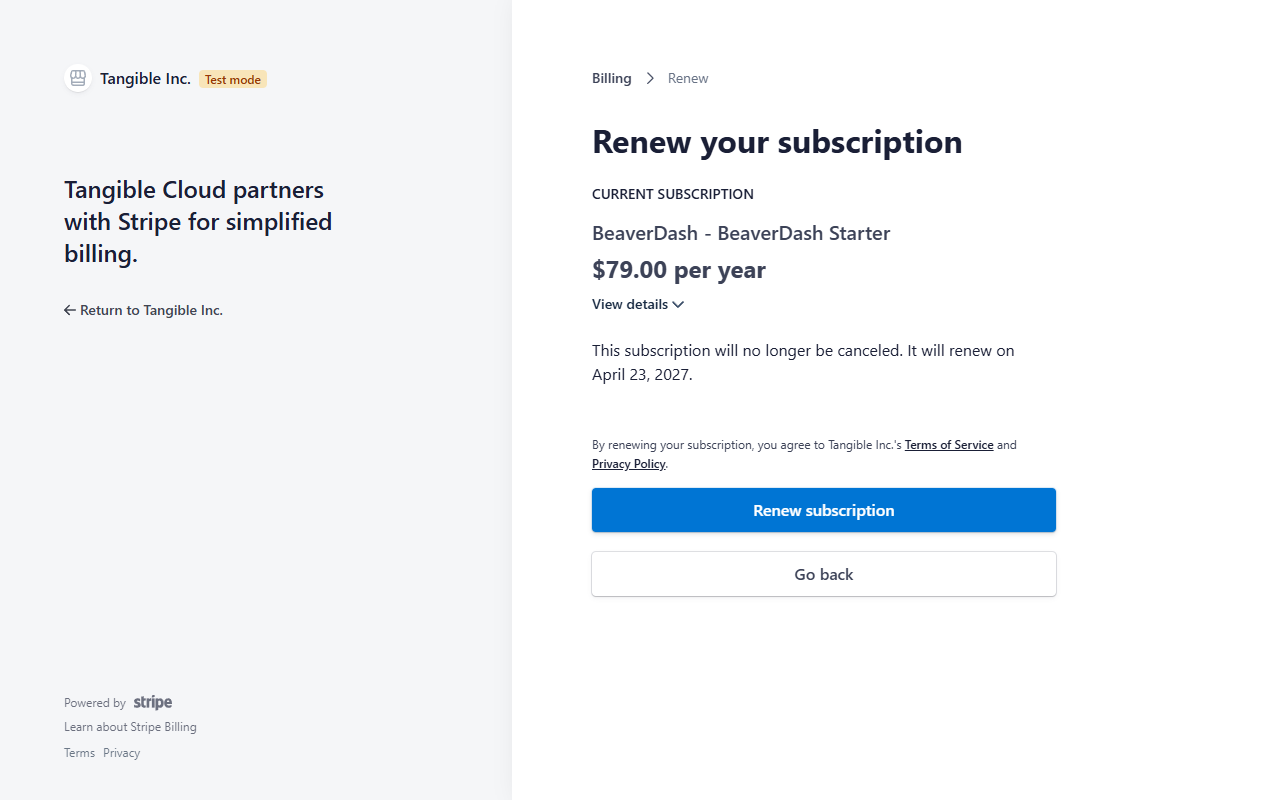
Stripe opens a Renew your subscription page showing the subscription and the date renewals will resume. Review the terms-of-service link below the summary, then click Renew subscription to confirm.
-
The portal returns you to the subscriptions list. The Cancels [date] badge is removed and the row's action button reverts to Cancel subscription. Normal renewal resumes on the original schedule.
After the period ends and the license expires, reactivation is no longer available — you'll need to buy a new subscription for the product. See Expired and Past-Due Licenses.