6.2 Managing Billing in Stripe
Tangible Cloud itself doesn't store your card details or generate your invoices — those live in Stripe. For anything payment-related beyond seeing your subscriptions and canceling them, Tangible Cloud links directly into the Stripe customer portal so you can self-serve without a separate login.
Opening the Stripe portal
- Click Billing in the left navigation.
- In the top-right corner of the Billing page, click Manage Billing.
- Tangible Cloud generates a short-lived session URL and opens the Stripe customer portal in your browser. The URL changes to a
billing.stripe.comaddress.
No extra login is required — Tangible Cloud proves your identity to Stripe behind the scenes when it generates the link.
What you can do in the Stripe portal
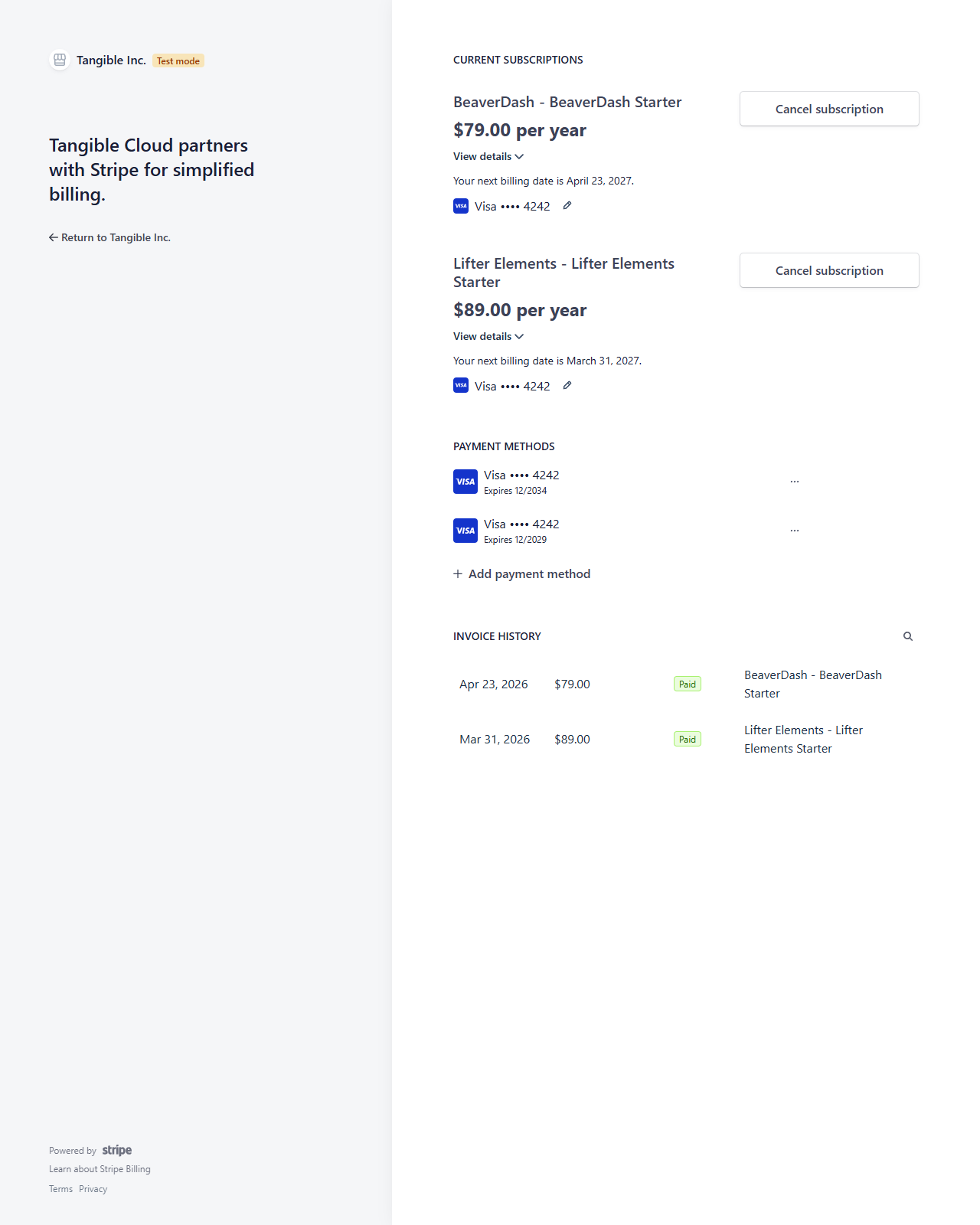
The portal shows three sections:
Current subscriptions
Every active subscription your organization has is listed with the subscription name, price, next billing date, and the payment method it charges. For each subscription you can:
- Cancel subscription — stops the subscription from renewing. The service continues until the end of the current billing period. See Canceling a Subscription for the full effect.
- View details — expand an inline panel with the subscription's full details.
- Edit the payment method (pencil icon) — change which card this specific subscription charges.
Payment methods
Every card or payment method on file for your organization is listed. From this section you can:
- Add payment method — register a new card.
- Open a card's More options menu to set it as default or delete it.
Invoice history
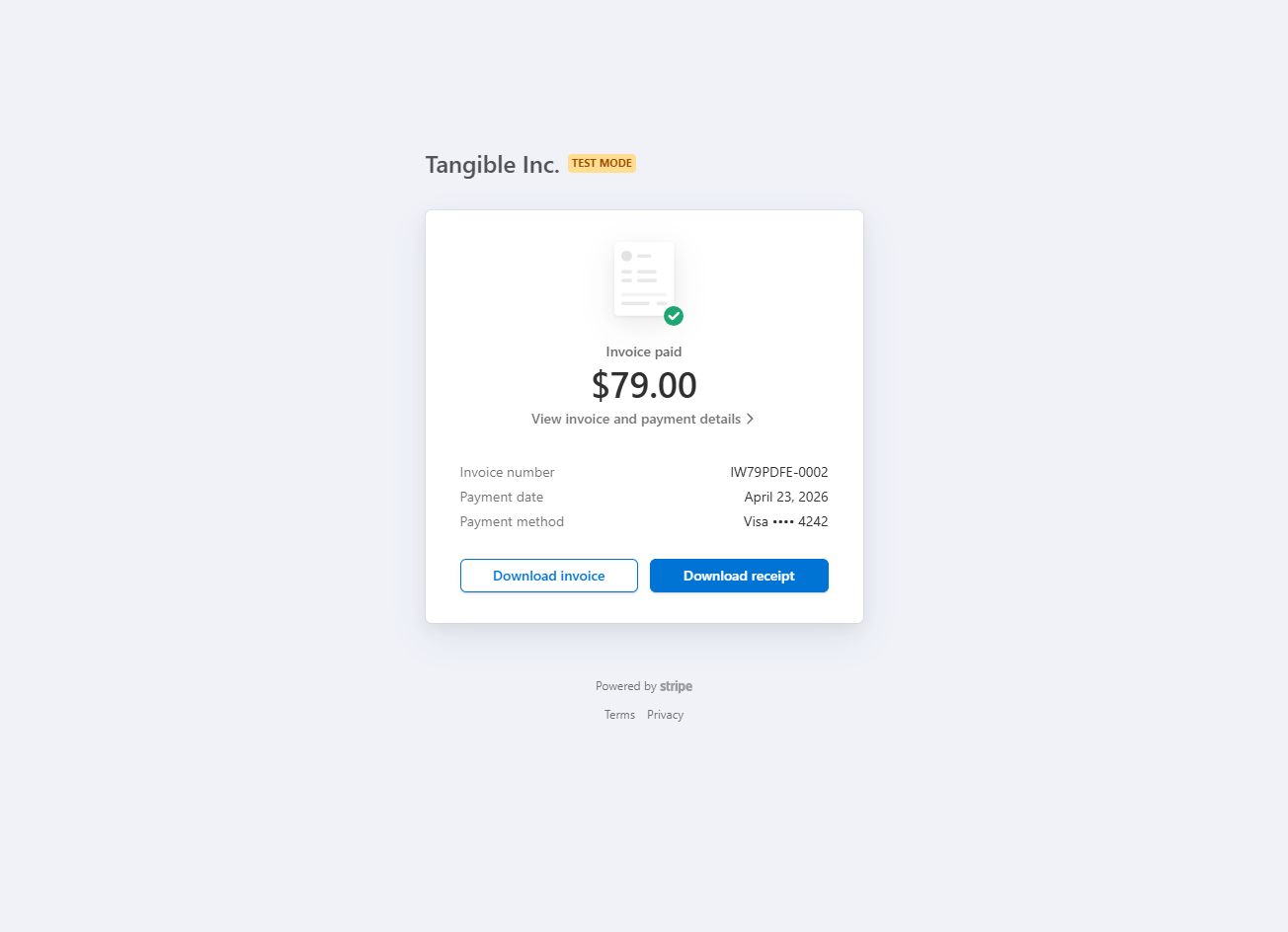
Every subscription renewal produces an invoice. Each row shows the invoice date, amount, payment status, and the subscription it belongs to. Clicking a row opens the invoice on a dedicated Stripe page where you can view the amount, invoice number, payment date, and the payment method used, along with Download invoice and Download receipt buttons for expense reports and accountants.
Returning to Tangible Cloud
The Return to Tangible Inc. link in the top-left corner of the portal (under the Tangible logo) brings you back to Tangible Cloud's Billing page when you're done. Any changes you made in the portal — updated card, canceled subscription, new payment method added — sync back to Tangible Cloud automatically via webhook.
There can be a short delay between making a change in Stripe and seeing it reflected in Tangible Cloud. If you canceled a subscription in the Stripe portal and the Tangible Cloud Billing page still shows it as Active, give it a minute and refresh. See Canceling a Subscription for what the canceled state should look like.