2.1 Signing Up and Signing In
Tangible Cloud uses a hosted sign-in page provided by our identity provider. When you visit any page that requires you to be signed in, Tangible Cloud redirects you to that hosted page to enter your credentials, then returns you to the page you were trying to reach.
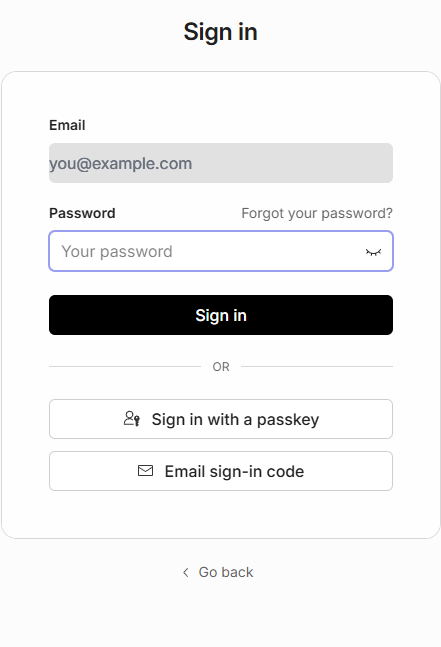
The sign-in flow has two steps: you enter your email first, then choose how you want to authenticate (password, passkey, or a one-time code sent to your email).
Signing in
- Go to tangible.one.
- Tangible Cloud redirects you to the hosted sign-in page. The URL in your browser changes to a
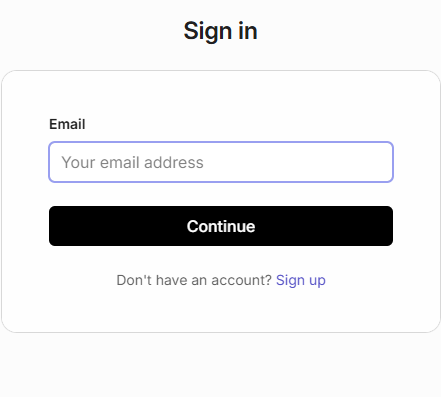
*.authkit.appaddress. This is expected. - Enter your email address and click Continue.
- On the next screen, choose one of the three ways to sign in:
- Password — enter your password in the Password field and click Sign in.
- Passkey — click Sign in with a passkey and approve the request on your device. This requires that you've previously registered a passkey for this account.
- Email sign-in code — click Email sign-in code to receive a time-limited code by email. Open your inbox, copy the code, and paste it on the page to complete sign-in.
- Once your credentials are accepted, you are redirected back to Tangible Cloud and land on the page you originally tried to reach — usually your dashboard.
Creating a new account
- Go to tangible.one and let Tangible Cloud redirect you to the hosted sign-in page.
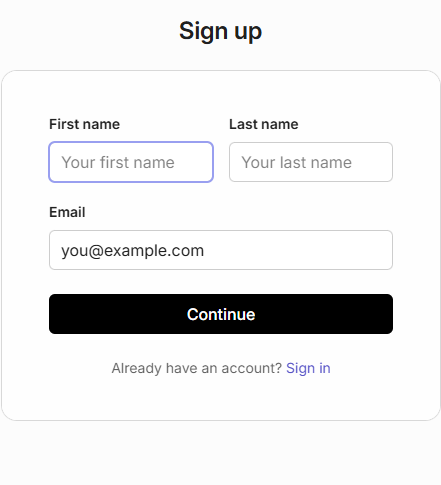
- Under the email form, click the Sign up link.
- On the sign-up page, enter your first name, last name, and email address. Click Continue.
- Follow the on-screen steps to set a password or register a passkey, and verify your email address if prompted.
- When sign-up is complete, you are redirected to Tangible Cloud and land on your dashboard with the onboarding checklist ready for you to work through. See Completing Your Account Onboarding for the next steps.
[MEDIA: screenshot | 2-1-signup-post-email-steps.png | Capture the steps that follow after submitting First name, Last name, and Email on the sign-up page. This may include a password-creation step (with password + confirm password fields or a "use a passkey instead" option), and/or an email verification step (either a "check your email" screen with a verification code input, or a clickable magic link confirmation). Capture each distinct screen in sequence; if there are multiple, save as signup-post-email-step-1.png, signup-post-email-step-2.png, etc. Use an empty/pre-submit state for each — no entered data, no error messages. Desktop view, tight crop to the hosted auth card (same framing as signin-page.png and signup-page.png).] [ALT: Hosted sign-up step that appears after entering name and email, showing password or passkey creation] [CAPTION: none]
If you were invited to an existing organization, the flow is different — you'll receive an invitation email with a link that walks you through account creation and joins you to the organization automatically. See Managing Invitations for the invite side of that flow.
Signing out
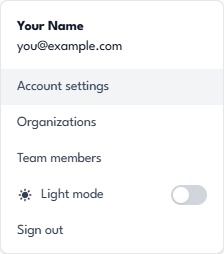
- In the top-right corner of Tangible Cloud, click the User menu (your initial or avatar).
- Choose Sign out from the menu.
- You are returned to the hosted sign-in page and your session is cleared.
Forgot your password
If you can't remember your password:
- Start the sign-in flow as normal. Enter your email address and click Continue.
- On the password step, click Forgot your password? in the top-right corner of the Password field.
- Follow the on-screen prompts to receive a password-reset email. The reset link is time-limited — open it soon after it arrives.
- Follow the link and set a new password.
You can also request a password-reset email from inside Tangible Cloud if you're already signed in — go to Settings → Account and click Send password reset email under the Password section.
If you'd rather not set or reset a password, you can sign in with a one-time Email sign-in code or a passkey instead. Both are available from the password step of the sign-in flow.
Why your email isn't editable in Settings
Your email address is managed by the identity provider, not by Tangible Cloud itself. That means you can see your email in Settings → Account, but you can't change it from within the app. To change the email on your account, contact support.