7.4 Managing Invitations
After you send an invitation, it sits as pending until the recipient either accepts it or it expires. The Invitations tab in Settings is where pending invitations live.
Open the Invitations tab
- Click Settings in the left navigation.
- Click the Invitations tab.
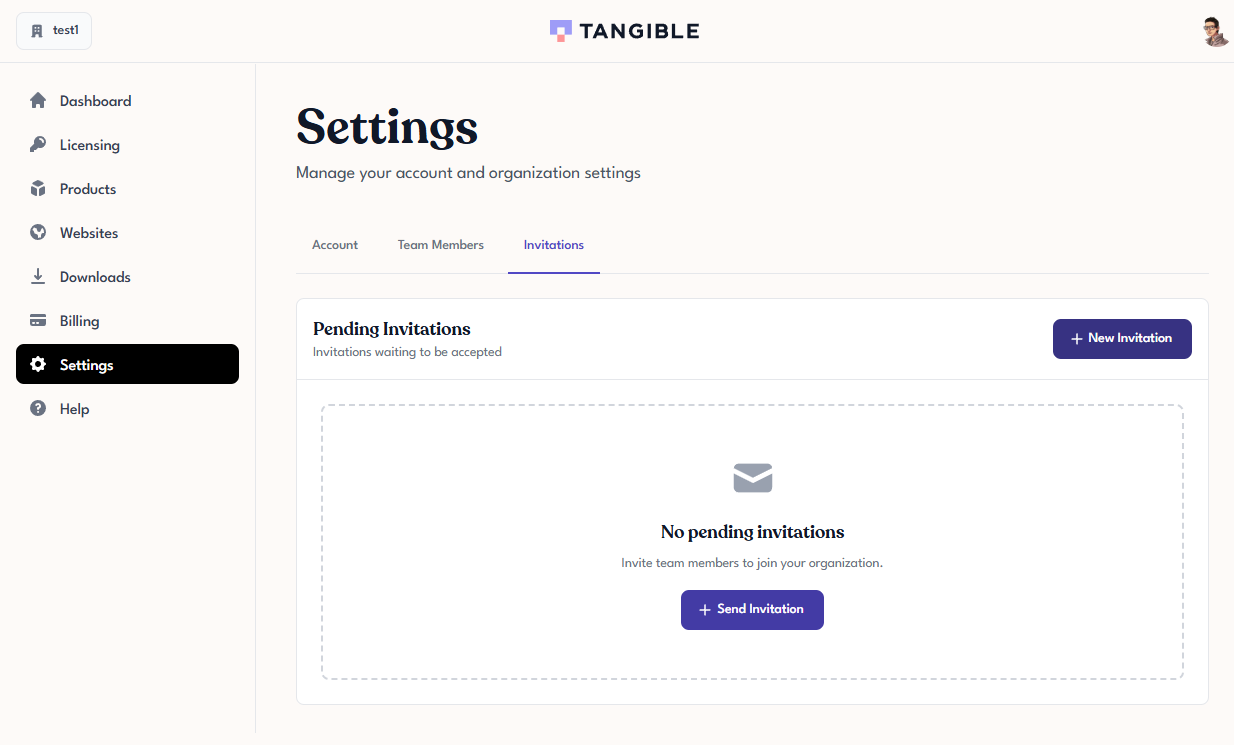
If there are no pending invitations, you'll see a No pending invitations placeholder with a Send Invitation button — the same action available from Team Members.
What pending invitations show
Each pending invitation on this tab includes:
- The email address it was sent to.
- The role the invitee will be given when they accept.
- When the invitation was sent, and when it expires.
- Actions to resend or cancel the invitation.

Resending an invitation
If the recipient says they never received the email, or the invitation is close to expiring:
- Find the invitation in the Pending Invitations list.
- Click Resend on that row.
A fresh invitation email is sent to the same address, usually with a new expiration window.
Canceling an invitation
If you changed your mind, typo'd the email, or the invitation is stale and you'd rather start over:
- Find the invitation in the Pending Invitations list.
- Click the trash/cancel icon on that row.
The invitation is removed from the list immediately (no confirmation dialog) and the link in the email is no longer valid — anyone who clicks it from that point forward will see an error page.
Creating another invitation from this tab
You can also send a new invitation directly from this tab rather than going back to Team Members:
- Click New Invitation in the top right.
- The same invite dialog opens as on the Team Members tab. See Inviting a Team Member for the steps.