7.1 Understanding Organizations and Members
An organization in Tangible Cloud is the container that owns everything you can see in the app — licenses, subscriptions, downloads, activated websites, and team members. When you look at the Licensing, Billing, or Websites page, you're looking at one organization's data. Switching to a different organization changes what you see.
The current-organization label
The top-left corner of every Tangible Cloud page shows the name of the organization you're currently viewing (for example, test1). If you ever need to double-check which organization's data you're working with, this label is the fastest answer.
Why organizations exist
Organizations separate ownership cleanly. If you're a freelancer managing your own plugins on your own sites, you probably have one organization and will never need another. If you're part of an agency, a client, or a studio, each group you work with can have its own organization — their licenses and billing stay separate from yours, and the sites your account can see change based on which organization you're viewing.
Being part of multiple organizations
A single Tangible Cloud user account can belong to multiple organizations. To see which ones:
- Open the User menu in the top-right corner.
- Click Organizations, or navigate directly to
tangible.one/organizations.
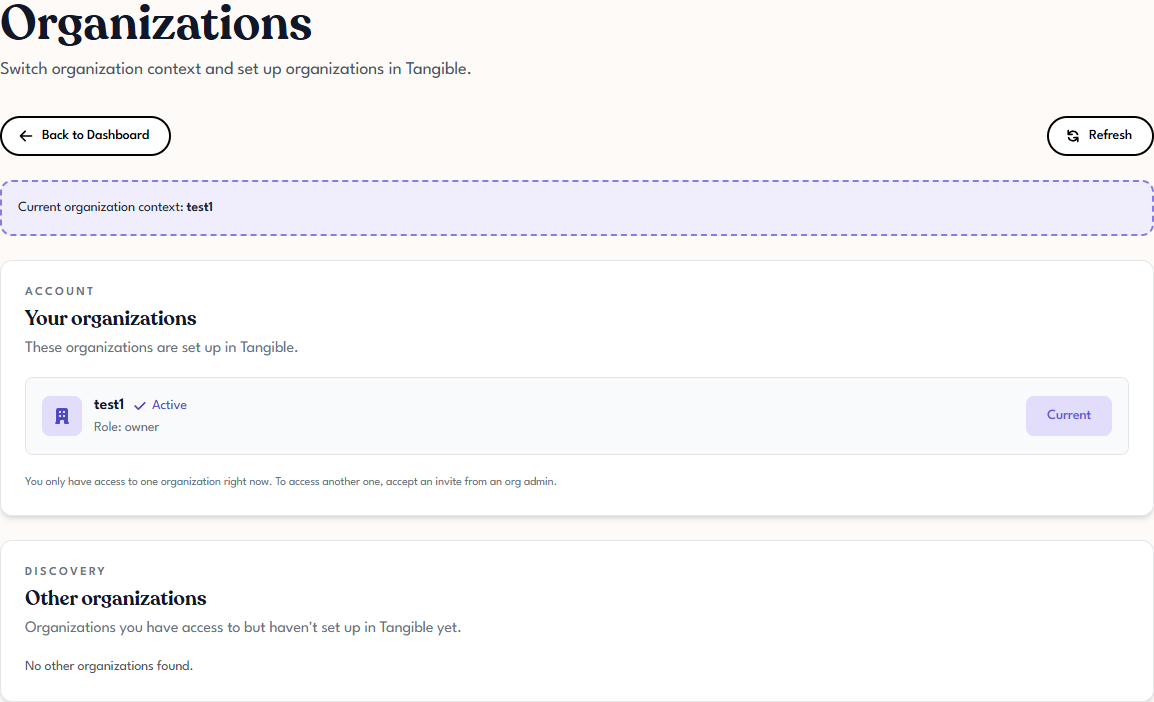
The Organizations page has two sections:
- Your organizations — the ones that are already set up in Tangible Cloud. This is where you'll see the organization you're currently using (flagged as Current) and any others you've joined.
- Other organizations — organizations your account has been granted access to through the identity provider but haven't been set up in Tangible Cloud yet. These are inactive as far as Tangible Cloud is concerned until someone (typically an admin) initializes them.
Switching to a different organization
If you're part of more than one organization, click the one you want to switch to on the Your organizations list. Tangible Cloud refreshes and the top-left label updates to the organization you selected. Every page you visit after that shows data from the new organization.
Members of an organization
Each organization has a list of members — the user accounts with access to it. Members are viewed and managed under Settings → Team Members (see Inviting a Team Member and Managing Invitations).
Each member has a role that determines what they can do. See Roles and Permissions for the full list and what each role controls.
Joining an additional organization
You can't add yourself to an organization. To join a new organization, someone with permission (typically an admin or owner) in that organization needs to invite you. Once you accept the invitation, the organization appears in your Your organizations list and you can switch to it.