7.5 Leaving an Organization
If you no longer need access to an organization — you've moved teams, the project has ended, or you're cleaning up account access — you can remove yourself from it without involving an admin. Your user account keeps existing; you just lose access to that particular organization.
Before you leave
A few things to check before leaving:
- Transfer ownership if you're the only Owner. If you're the only member with the Owner role, Tangible Cloud blocks the leave action with a
LAST_OWNER_BLOCKEDerror — promote another member to Owner first, then leave. An organization always has at least one Owner. - Check that someone else can take over anything you currently do in the organization — especially managing licenses, billing, or invitations. Your access goes away immediately when you leave.
- You can rejoin later, but only by invitation. Leaving is not a permanent ban. If you need access again in the future, an Owner or Admin in the organization can invite you back.
Leave from Settings
- Click Settings in the left navigation.
- On the Account tab, scroll to the bottom of the page.
- In the Danger Zone card, click Leave Account.
- Confirm that you want to remove yourself from the organization.
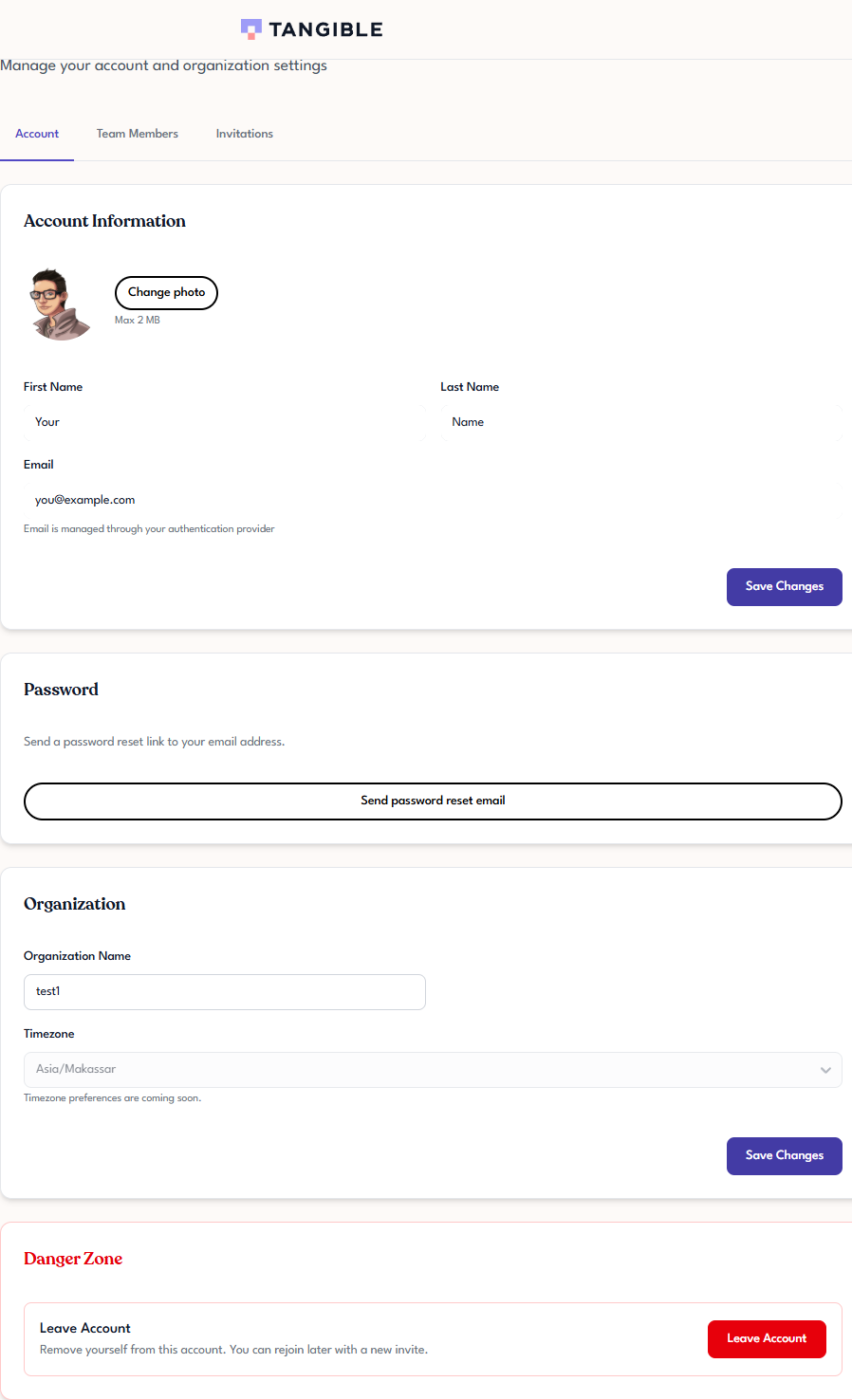
You're signed out of the organization's context immediately. If you belong to other organizations, Tangible Cloud switches you to one of them; if this was your only organization, you'll see the sign-in-related flows described in Signing Up and Signing In.
What leaving doesn't affect
Leaving only removes your membership. It does not:
- Delete the organization or anyone else's access to it.
- Delete the licenses, subscriptions, or websites belonging to the organization — those stay with the organization, owned by whoever remains.
- Delete your Tangible Cloud user account. Your sign-in still works; you just won't see this organization's data anymore.
To fully delete your user account (as opposed to leaving one organization), contact support — account deletion isn't currently a self-serve action.