7.2 Roles and Permissions
Every member of an organization has exactly one role. The role controls what the member can see and do — what licenses they can manage, whether they can invite others, whether they can access billing, and so on.
Tangible Cloud has six roles. Picking the right role when you invite someone is about matching the role to what they actually need to do.
The six roles
| Role | Best for |
|---|---|
| Owner | The person (or people) ultimately responsible for the organization. Full access including billing and ownership transfers. |
| Admin | Team leads and operational managers. Can manage team members and most settings, view invoices, and approve plan upgrades — but can't change the payment method or cancel the subscription. |
| Billing | Accountants and finance owners. Can manage billing and view invoices, without access to licenses or sites. |
| Developer | Engineers and implementers. Can access licenses, downloads, and activations — the day-to-day working set. This is the default role for new invitations. |
| External Developer | Contractors or vendors who need scoped access to specific products, websites, or licenses rather than the full set. |
| Accountant | Audit or finance-adjacent roles. View-only access to billing and invoices — no ability to change anything. |
What each role can do
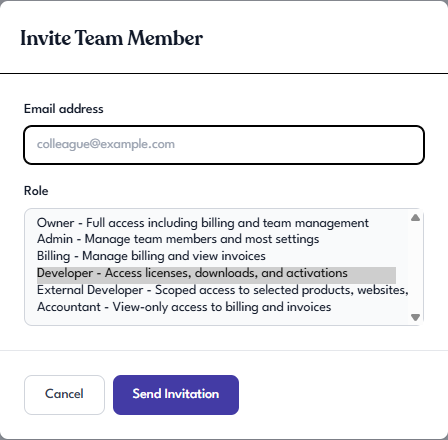
The dropdown in the invite dialog summarizes each role in one line:
- Owner — Full access including billing and team management.
- Admin — Manage team members and most settings.
- Billing — Manage billing and view invoices.
- Developer — Access licenses, downloads, and activations.
- External Developer — Scoped access to selected products, websites, and licenses.
- Accountant — View-only access to billing and invoices.
Picking the right role
A practical rule of thumb:
- If someone pays the bills, Billing or Owner.
- If someone handles the tech — installing, activating, maintaining sites — Developer.
- If someone from outside the organization needs limited access to particular products or sites, External Developer.
- If someone needs read-only visibility for audit or reporting, Accountant.
- If someone needs to manage other members or settings but shouldn't see billing, Admin.
- Reserve Owner for the one or two people who need authority over everything, including who else is an Owner.
Changing a member's role
To change a member's role:
- Go to Settings → Team Members.
- Find the member whose role you want to change.
- Use the role dropdown on their row to select a new role.
- Confirm the change.
The new role takes effect immediately.
Tangible staff roles
The six roles above are the ones you assign. In addition, Tangible's own staff have two platform-level roles that operate across the service — you don't assign these, but you may see their effects in your organization:
- Platform admin — Tangible employees with administrative access to the platform itself. They don't routinely see customer data; access is governed by internal policy and logging.
- Support agent — Tangible support staff who can, during an active support session you've initiated, perform a small set of scoped actions on your account (for example, approving a pending connection or deactivating a stuck site). Every support action is audit-logged. Support agents cannot change billing, invite or remove team members, or create new license keys — those are always off-limits regardless of the session.
See 8.2 Filing a Support Ticket for details on what a support session can and can't do.