8.2 Filing a Support Ticket
When the docs and FAQ don't cover your question, or you need a person to investigate a specific issue, file a support ticket. Tickets are managed inside Tangible Cloud, so you don't need a separate helpdesk login.
Open the new-ticket form
You can start a ticket from two places. Both open the same Create Support Ticket dialog.
- From the Help page — click Help in the left navigation, then click New Ticket in the Support Tickets card.
- From the Dashboard — click New Ticket in the Tickets widget at the bottom of the dashboard.
Fill in the ticket
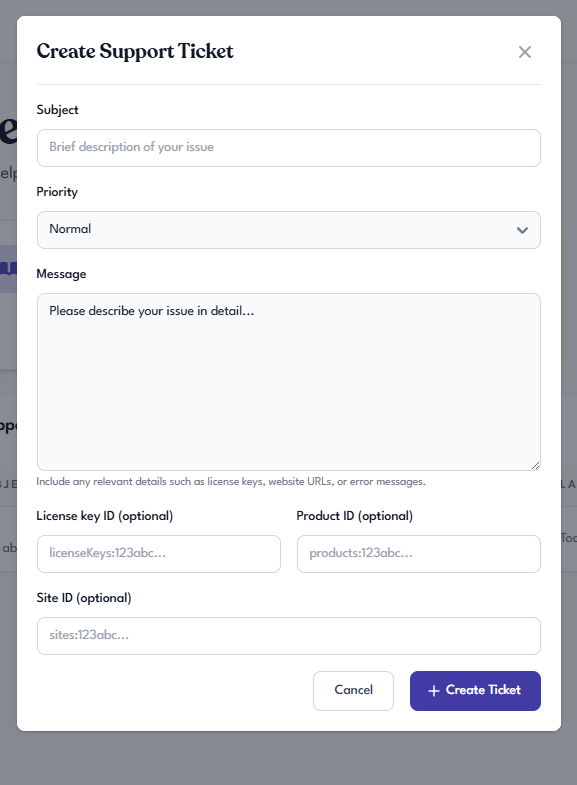
Subject
A short description of the issue. One sentence is enough — detailed explanation goes in the Message field.
Good examples:
- "License key not activating on a new site"
- "Downloaded plugin zip is corrupted"
- "Subscription charged twice this month"
Priority
Pick the urgency level that matches your situation:
| Priority | When to use |
|---|---|
| Low | Non-urgent questions or minor cosmetic issues. |
| Normal | Standard issues that affect your work but aren't blocking it. This is the default. |
| High | Issues that are blocking your work but affect only you or a single site. |
| Urgent | Production outages, widespread activation failures, or situations where multiple sites or customers are blocked. |
Set Priority honestly — marking everything Urgent slows down the support team's ability to triage real emergencies.
Message
The full details of your issue. Include whatever is relevant:
- What you were trying to do.
- What you saw happen, and what you expected to happen instead.
- Any error messages you received, copied verbatim.
- Steps to reproduce the issue if they're repeatable.
- Screenshots, if they help explain what you're seeing.
Link the ticket to a license, product, or site (optional)
Below the Message, three optional fields let you link the ticket to specific items in your organization:
- License key ID — link to a specific license (for example, if you're reporting an issue with one key).
- Product ID — link to a specific product in the catalog (for example, if the issue is about a particular plugin's licensing).
- Site ID — link to a specific activated site.
Linking is optional, but it makes the support team's job faster when the issue is tied to a specific item. The ID format shown in the placeholder (for example, licenseKeys:123abc...) is what the system uses internally — you don't normally need to know it yourself. If you can find the relevant license, product, or site in Tangible Cloud, the support team can usually follow up from your description alone.
Submit
Click Create Ticket. The modal closes and your ticket appears in the Support Tickets table on the Help page with a status of Pending.
Tracking your tickets
After you file a ticket, it appears in two places:
- The Support Tickets table on the Help page shows every ticket you've filed. Click a row to open it and see the full thread.
- The Tickets widget on the Dashboard shows your tickets split into Open and Closed tabs, with a link to the full list.
[MEDIA: screenshot | 8-2-help-ticket-detail.png | The ticket detail or thread view shown after clicking a ticket row on the Help page. Capture a ticket with at least one reply from support (so the thread layout is visible — customer message, support reply, timestamps, participant names or avatars). If there's a reply composer at the bottom for the customer to continue the conversation, capture that too. Redact real names/emails via DOM overlay if they appear. Use a test ticket where possible to avoid real customer content. Desktop view, tight crop to the ticket thread container.] [ALT: Support ticket detail view showing the message thread with a customer message and a support reply] [CAPTION: none]
Ticket statuses
| Status | What it means |
|---|---|
| Pending | The ticket has been filed and is waiting for the support team's initial response. |
| (other statuses, e.g. In Progress / Resolved / Closed — confirm exact labels with staging) | — |
You'll receive email notifications when the support team responds.
Support-session actions
Occasionally, resolving a ticket requires a Tangible support agent to take an action directly on your account — for example, approving a stuck connection or deactivating a site that isn't responding to the usual deactivation flow. This happens inside a support session: a scoped, audit-logged mode that's opened only while a support agent is actively working your ticket.
What a support agent can do
A support session allows a small, fixed set of actions — the ones that commonly resolve licensing and activation issues without needing to hand you an error to work around:
- Approve or reject a pending connection between your site and Tangible Cloud.
- Deactivate an activation that's stuck or unreachable — freeing the slot so you can reactivate cleanly.
- Reset a license's name or notes if a bad value is blocking something.
Every action taken during a support session is recorded in an audit log with the agent's identity, the affected item, and the time of the action.
What a support agent can never do
A support session explicitly does not allow:
- Billing changes — no starting, canceling, refunding, or modifying subscriptions. Billing is always handled through you in the Stripe customer portal (see 6.2 Managing Billing in Stripe).
- Team changes — no inviting, removing, or re-roling members.
- Creating or issuing license keys — keys are only created through a purchase.
- Deleting licenses, websites, or your account.
These limits apply regardless of the ticket. If something you're asking for falls into one of these categories, a support agent will guide you through doing it yourself rather than performing it on your behalf.
When a session is active
A support session is opened only when an agent is actively investigating your ticket and closes when they finish. It doesn't grant standing access — the agent cannot return to your account later without opening a new session tied to a new or continuing ticket.
If you'd prefer that no support-session actions be taken on your account, say so in your ticket's Message — the agent will handle the ticket by walking you through the resolution steps yourself.