3.2 Viewing Your Licenses
The Licensing page is the list of every license your organization owns. To reach it, click Licensing in the left navigation of Tangible Cloud.
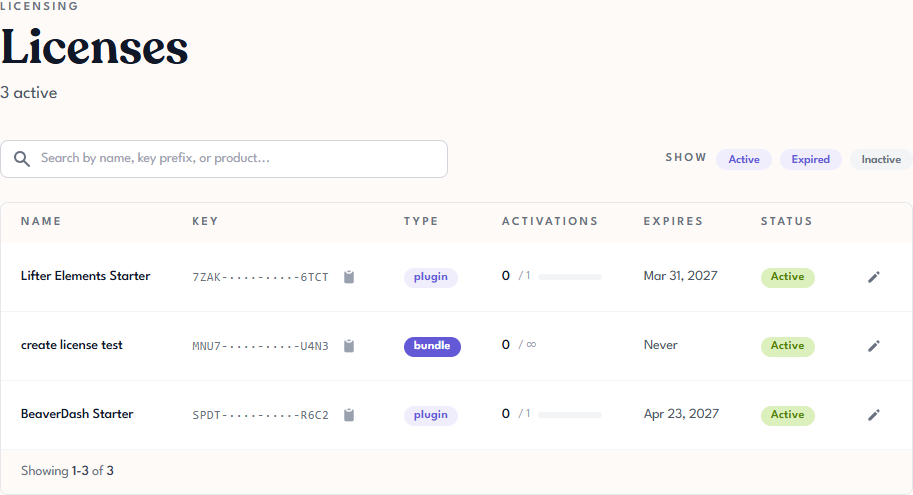
The list view
The summary above the table tells you how many licenses are currently in the view (for example, 2 active).
Each row in the table represents one license.
| Column | What it shows |
|---|---|
| Name | The display name of the license. For licenses created from a purchase, this is the product and tier (for example, Lifter Elements Starter). |
| Key | The license key, masked to show only the first and last four characters (e.g. 7ZAK-····-····-6TCT). Click the copy icon to copy the full key to your clipboard. |
| Type | Either plugin or bundle. See Understanding Licenses, Grants, and Activations for the difference. |
| Activations | Current usage vs. allowance — for example, 0 / 1 means zero sites are activated out of one allowed. 0 / ∞ means the grant has no set activation limit. |
| Expires | The date the license expires. Never means the license does not expire. |
| Status | Active (usable), Expired (past its expiration date), or Inactive (manually disabled). |
| Actions | Pencil icon that opens the license detail page, where you can edit the name/notes, view grants, manage activations, and set URL restrictions. |
Clicking on any row (or the pencil icon on the right) opens that license's detail page. Detail-page behaviour is covered in the pages that follow.
Searching
Use the search box above the table to filter by:
- Name — any text that appears in the license's display name.
- Key prefix — the first few characters of the key (the part that's visible without revealing). Useful when someone gives you a partial key to look up.
- Product — the name of the product the license grants access to.
Search is applied as you type.
Filtering by status
To the right of the search box, three filter pills control which licenses appear in the table:
- Active — licenses that are currently usable.
- Expired — licenses past their expiration date.
- Inactive — licenses manually disabled.
You can enable any combination of filters. Active is selected by default.
If you can't find a license you expect to see, clear the search field first, then check that the correct filter is enabled. An expired or inactive license won't show with only Active selected.